
Sign In to Your M2 Member Account
Table of Contents
M2 Login Steps
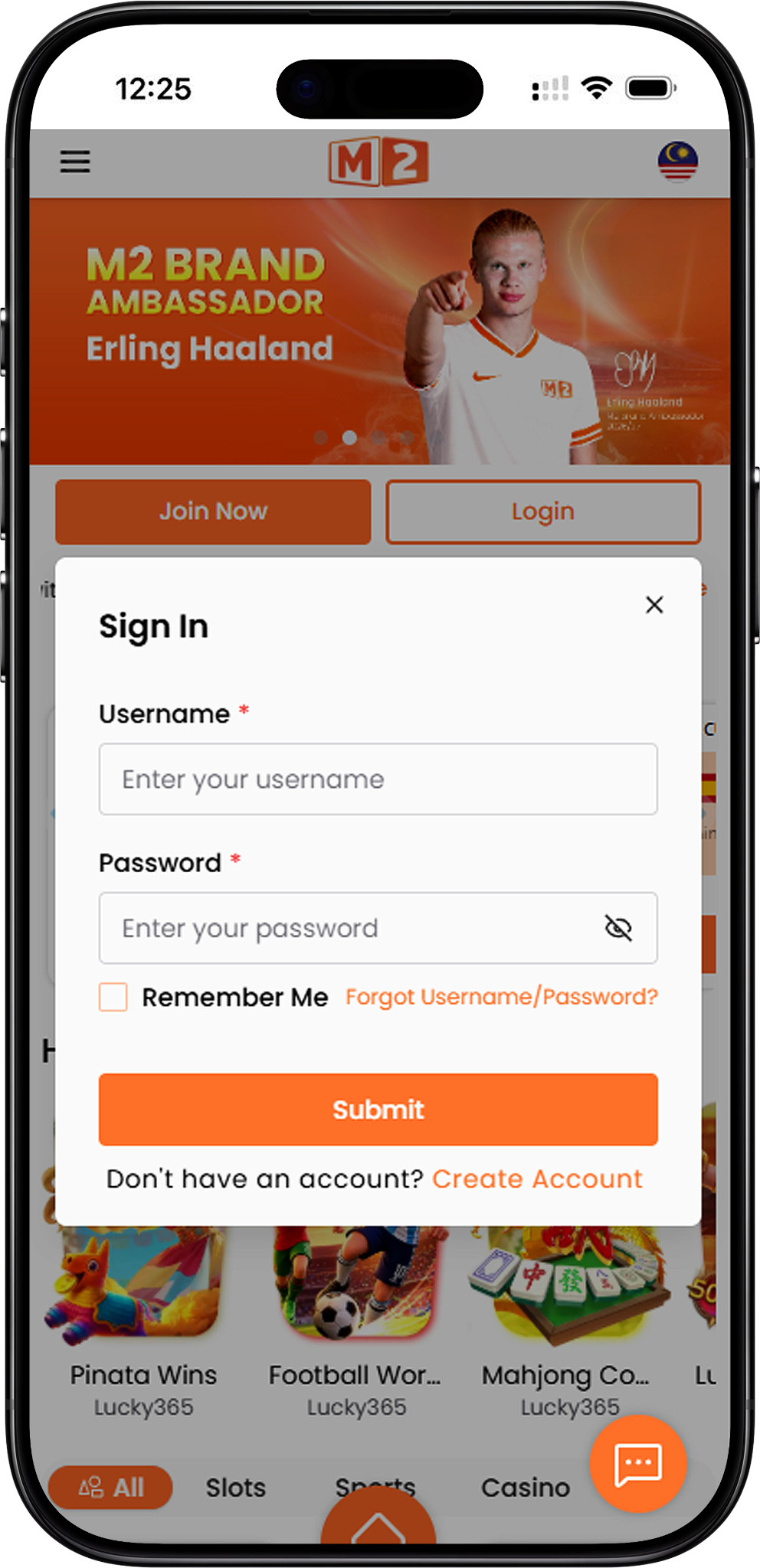
Members can access their accounts by entering a registered username and password through the secure login page. Start from the Login page (/en/login – Internal Link) and verify your information before selecting Submit.
Step 1: Open the Login Page
Visit the official Home page (/en – Internal Link) and choose Login, or enter m2mya.com into your browser before navigating to the member sign in page. Always confirm that you are using the correct website before entering your credentials.
Step 2: Enter Your Username
Type the username that was created during registration. Check the spelling carefully because incorrect characters or spaces may prevent successful sign in.
Step 3: Enter Your Password
Input your password exactly as it was created. Use the password visibility icon when available to verify your entry before submitting the form.
Step 4: Choose Remember Me if Needed
Enable Remember Me only on a personal device that you control. Avoid selecting this option on shared or public computers to reduce unauthorised access risks.
Step 5: Select Submit
Review your username and password before pressing Submit. If the information is correct, you will be directed to your member account dashboard.
Enter Your Login Information
Username Requirements
Use the registered username associated with your account. If you recently created an account, confirm your registration through the Register page (/en/register – Internal Link) before attempting to sign in.
Password Accuracy
Passwords are case-sensitive when supported by the platform. Avoid repeated failed attempts by checking your keyboard layout, character input, and password visibility before submitting.
Supported Devices
Members can sign in using compatible desktop computers, laptops, tablets, and smartphones with a supported web browser. Additional browser access guidance is available through the Download page (/en/download – Internal Link).
Use the Remember Me Feature
When to Enable Remember Me
Remember Me can reduce repeated logins on a trusted personal device. Only enable this feature when your browser and device are protected with appropriate security measures.
When Not to Enable Remember Me
Do not enable Remember Me on internet cafés, workplace computers, school devices, or shared family devices where another person may gain access to your account.
Sign Out After Each Session
Always log out after completing your session, especially when using a shared device or public network. Closing the browser alone may not completely end the active session.
Recover Your Username or Password
Forgot Your Username
Select the Forgot Username or Password option on the login page and follow the verification process using the contact information associated with your account.
Forgot Your Password
Complete the available identity verification steps before creating a new password. Choose a strong replacement password that is different from previous passwords whenever possible.
Unable to Access the Account
If you continue experiencing login difficulties after verification, review your account details and contact the appropriate member support channel for further assistance.
Keep Your Account Secure
Protect Your Login Credentials
Never share your username or password with another person. Keep your login details private and avoid storing them in unsecured documents or messages.
Verify the Official Website
Before entering account information, confirm that you are visiting the official website by checking the browser address. Access the platform directly through m2mya.com instead of relying on unknown third-party links.
Review the Platform Policies
Read the Terms and Conditions (/en/terms-and-conditions – Internal Link) and learn more about the platform through the About Us page (/en/about-us – Internal Link) before using member services.
Continue After Signing In
Explore Available Games
After successful login, members can visit the Games page (/en/games – Internal Link) to explore Slots (/en/games/slots – Internal Link), Sports (/en/games/sports – Internal Link), Casino (/en/games/casino – Internal Link), and Lottery (/en/games/lottery – Internal Link).
Manage Your Transactions
Review the guidance available on the Deposit page (/en/deposit – Internal Link) and Withdrawal page (/en/withdrawal – Internal Link) before completing account transactions.
Learn About Member Benefits
Members can review the latest offers through the Promotions page (/en/promotions – Internal Link), explore ongoing benefits on the Rebate page (/en/rebate – Internal Link), or discover referral opportunities through the Agent page (/en/agent – Internal Link).
Frequently Asked Questions
What do I need to sign in?
Members need a registered username and the correct password created during account registration.
Why can’t I log in?
Check your username, password, internet connection, keyboard input, and account status before trying again. If necessary, use the account recovery option.
Is the Remember Me option safe?
It is suitable only for trusted personal devices. Avoid enabling it on public or shared devices.
Can I reset my password?
Yes. Use the Forgot Username or Password option and complete the required verification before creating a new password.
Where can I create a new account?
New members can complete the registration process through the Register page (/en/register – Internal Link) before accessing the login page.