

Download and Install the M2 Web App
Table of Contents
Download M2 on Android
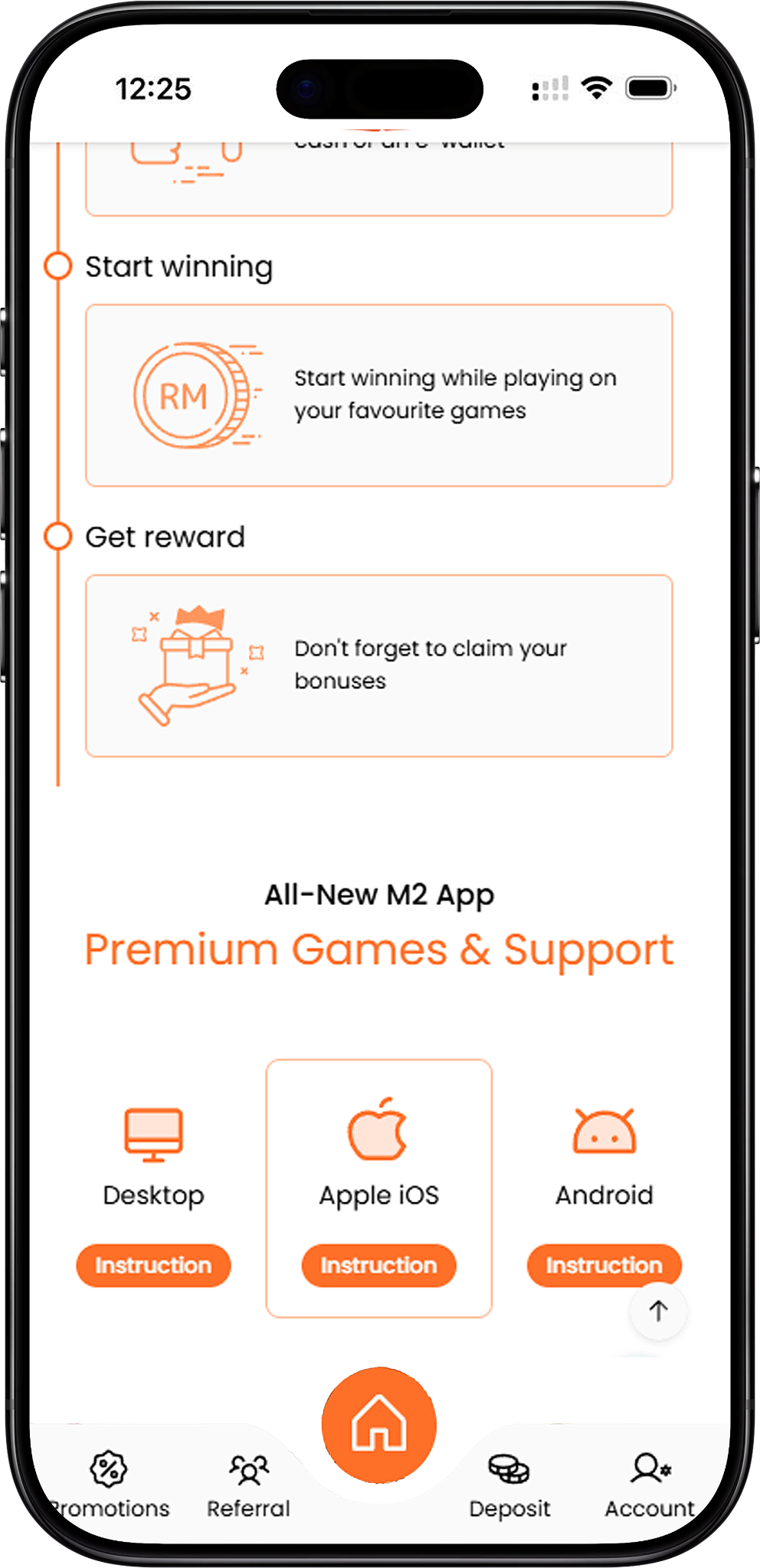
Members can install the browser-based application by adding it to the Android Home Screen. Begin from the Download page (/en/download – Internal Link) or visit m2mya.com using Google Chrome or another supported browser.
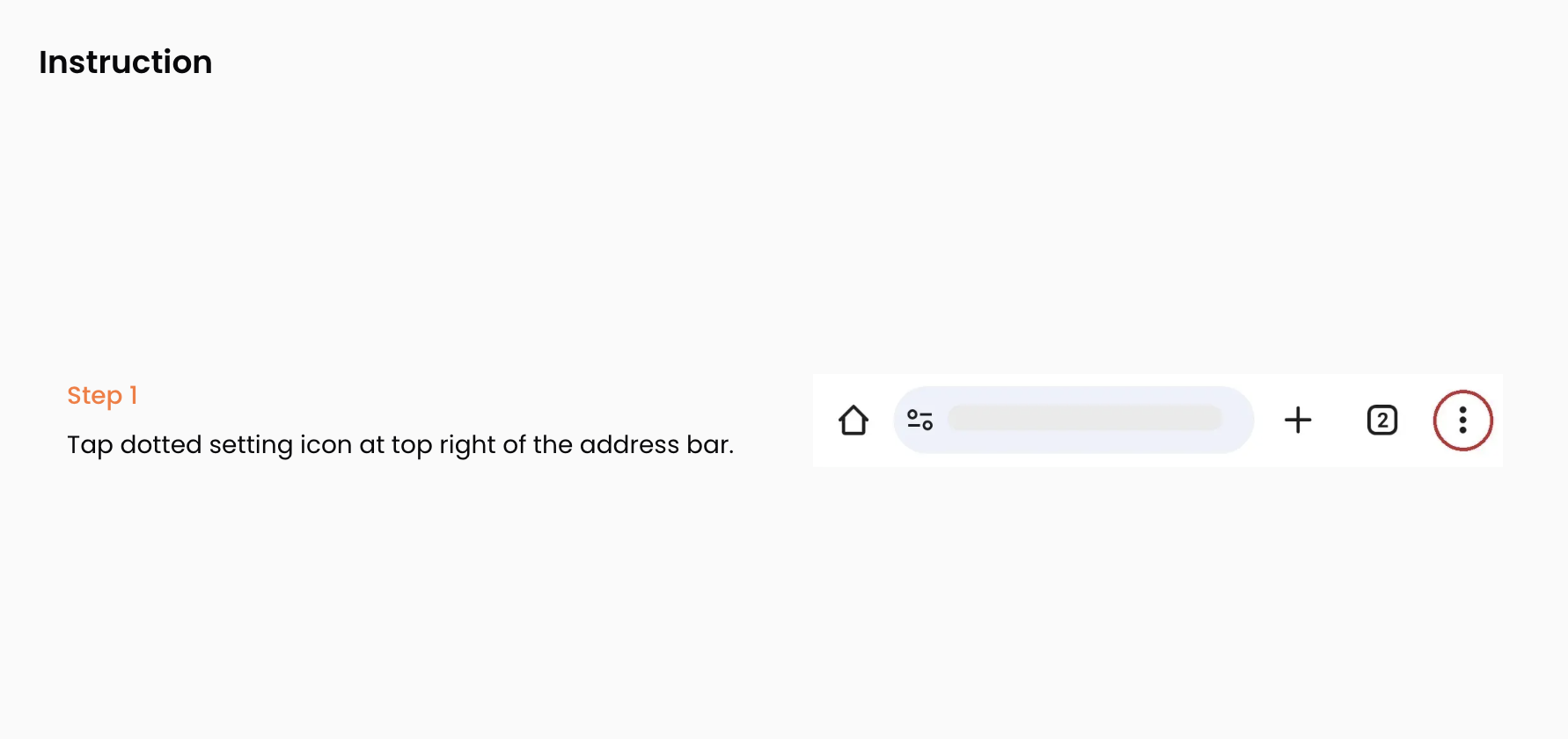
Step 1: Open the Browser Menu
Open the website in a supported Android browser. Tap the three-dot menu at the upper-right corner of the browser address bar to display additional options.
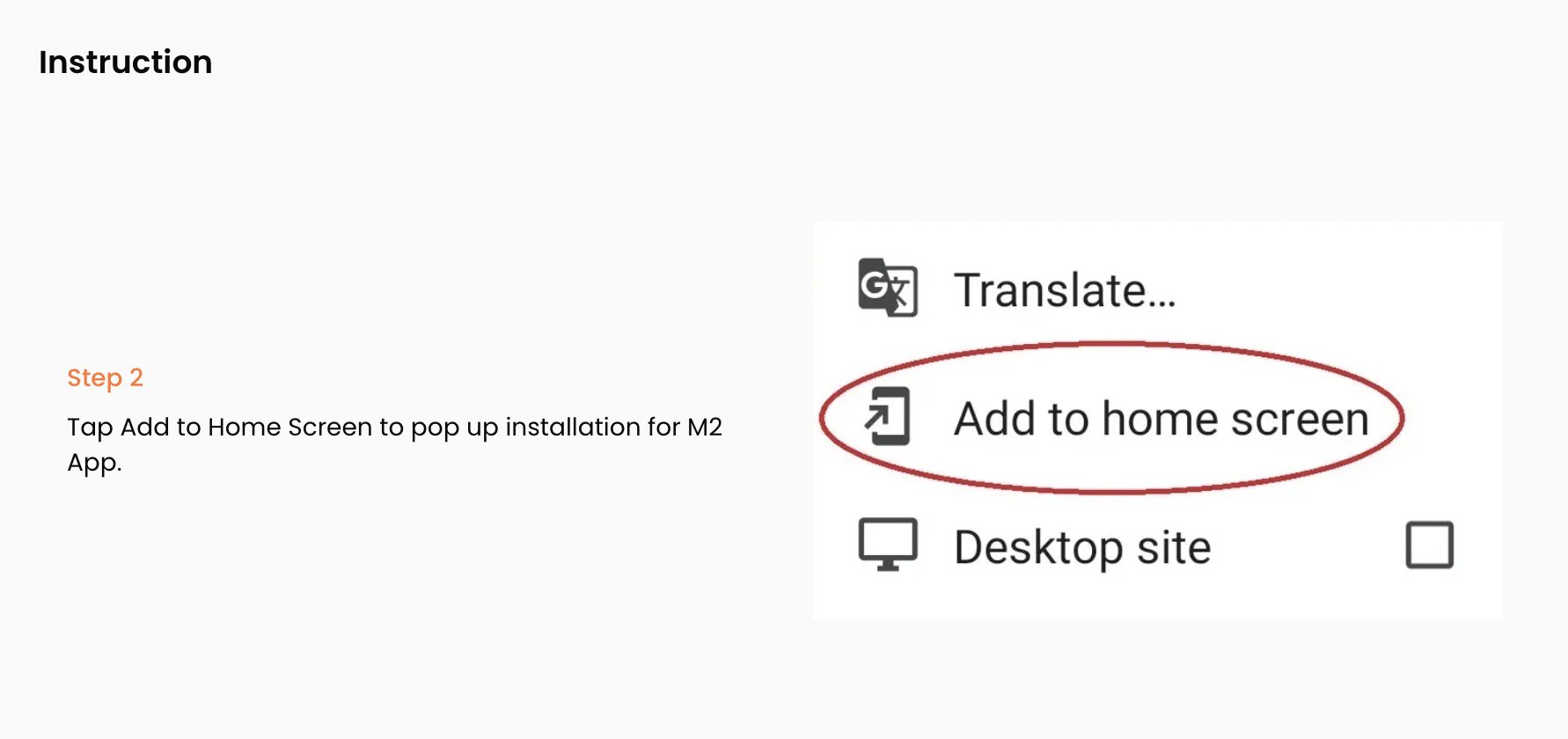
Step 2: Select Add to Home Screen
Choose Add to Home Screen from the browser menu. This option prepares the browser application for installation without requiring a traditional app download.
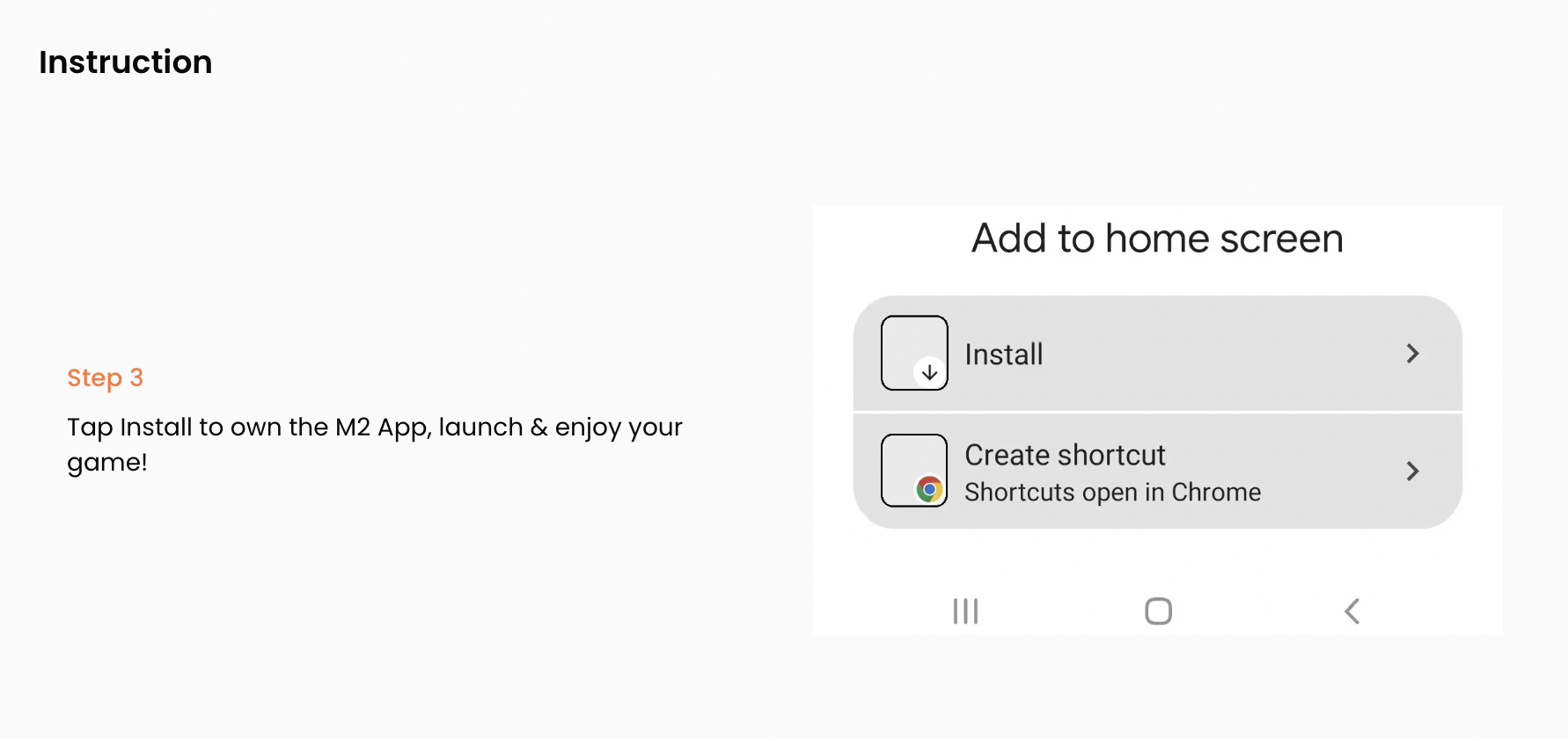
Step 3: Install the Web App
Select Install when the installation prompt appears. Once completed, the application shortcut will be added to your Android Home Screen for faster access.
Keep your browser updated to improve compatibility, security, and overall performance during installation.
Download M2 on Desktop (Windows & macOS)
Desktop users can install the browser application directly from supported browsers such as Google Chrome or Microsoft Edge without downloading separate installation files.
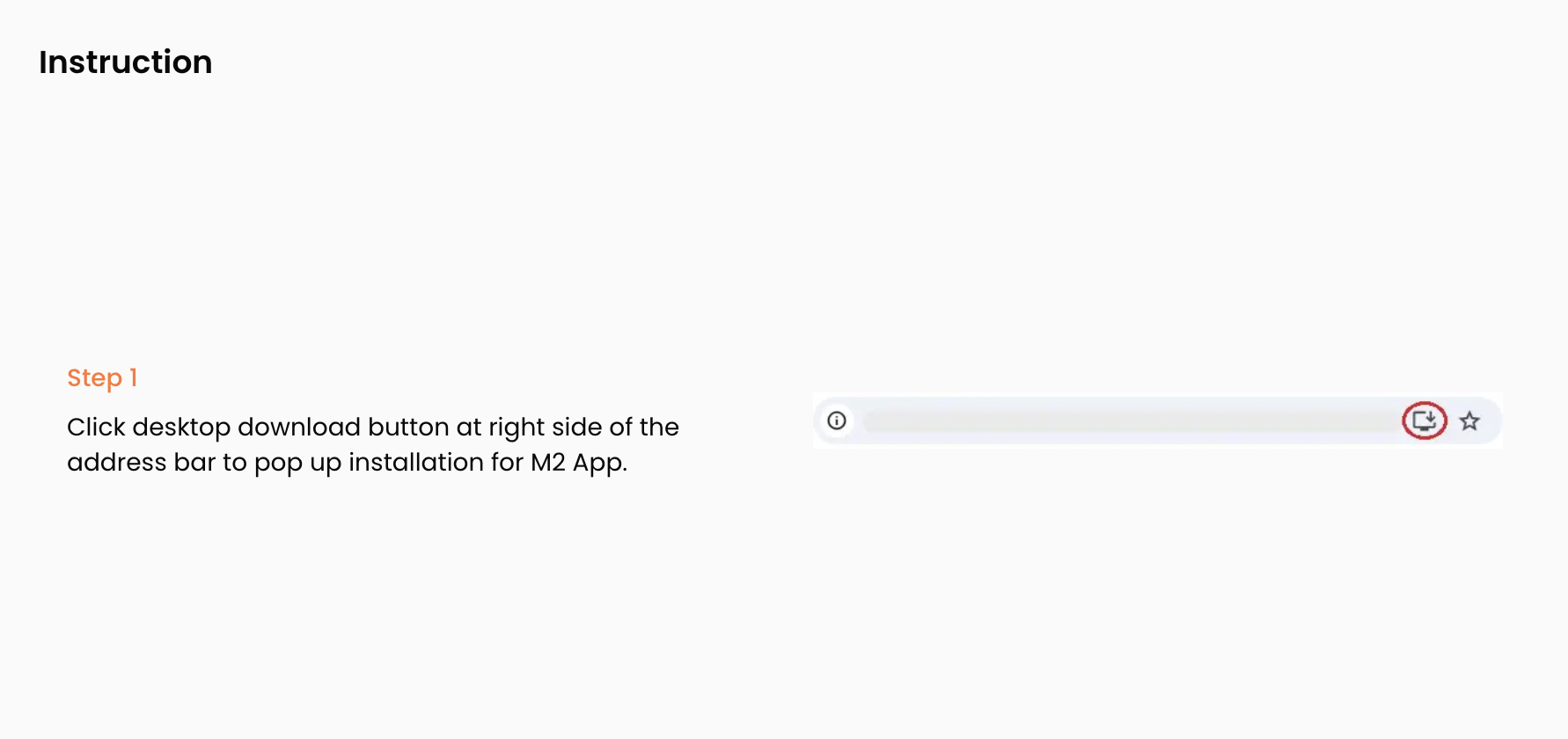
Step 1: Click the Install Icon
Open the website using a supported browser. Select the install icon displayed on the right side of the browser address bar when it becomes available.
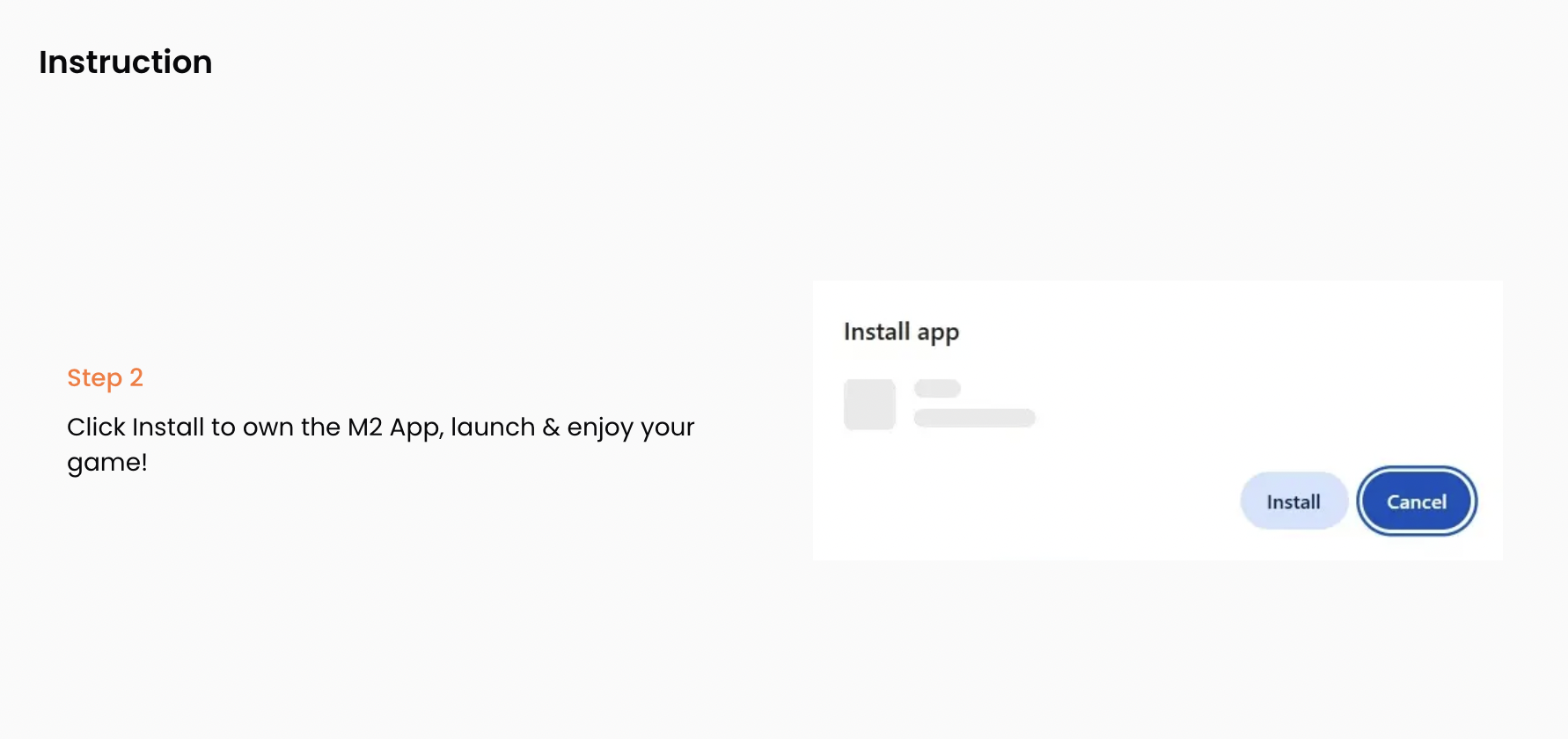
Step 2: Confirm Installation
Select Install from the browser confirmation window. The browser will create a desktop application shortcut for easier future access.
Step 3: Launch the Desktop App
Open the newly installed desktop application from your desktop or application launcher and sign in through the Login page (/en/login – Internal Link).
Desktop installation works on compatible Windows and macOS systems using supported browser versions with Progressive Web App (PWA) support.
Download M2 on Apple iOS
Apple iPhone and iPad users can add the browser application directly to the Home Screen through Safari without downloading from the App Store.
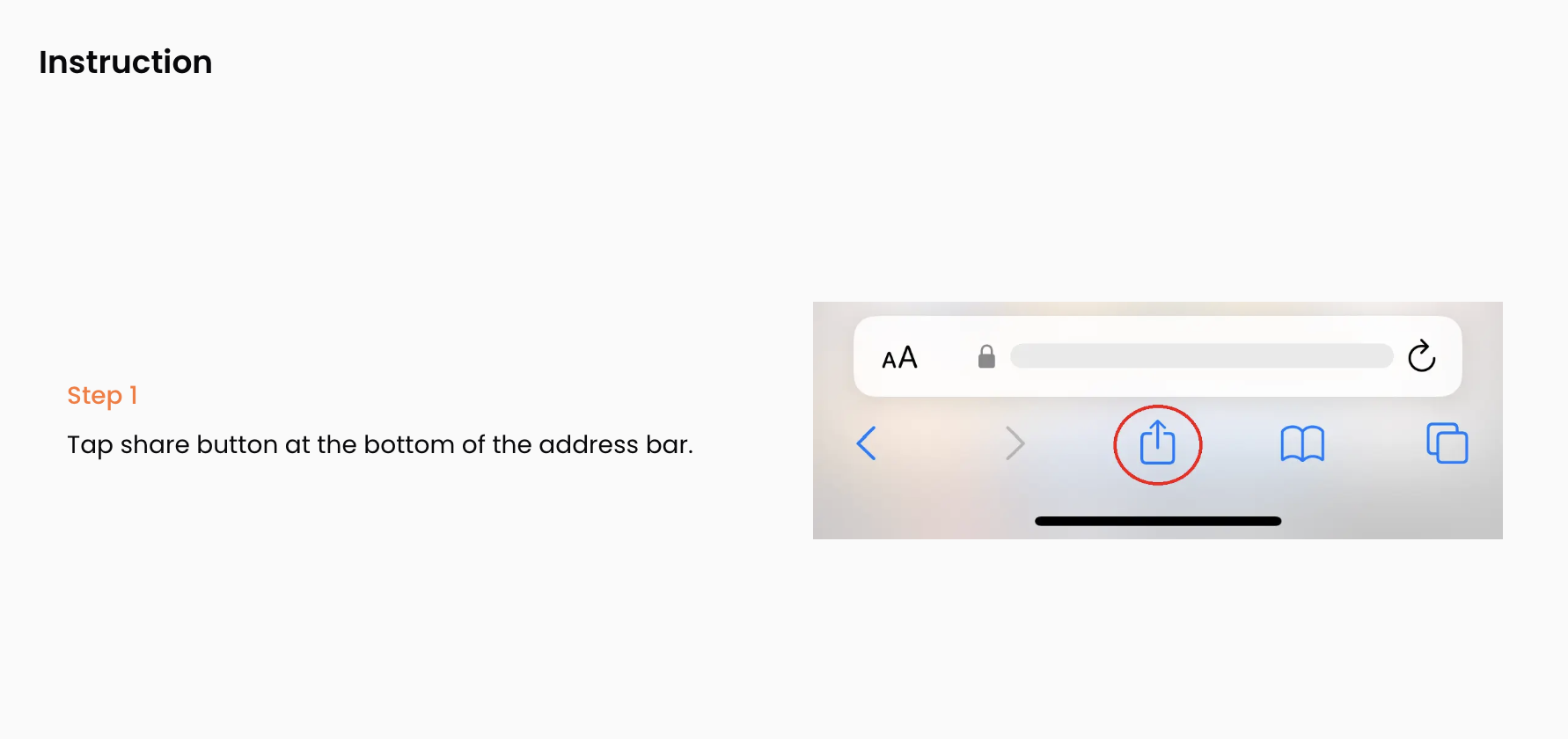
Step 1: Tap the Share Button
Open the website using Safari. Tap the Share button located at the bottom of the browser window to open the available actions.
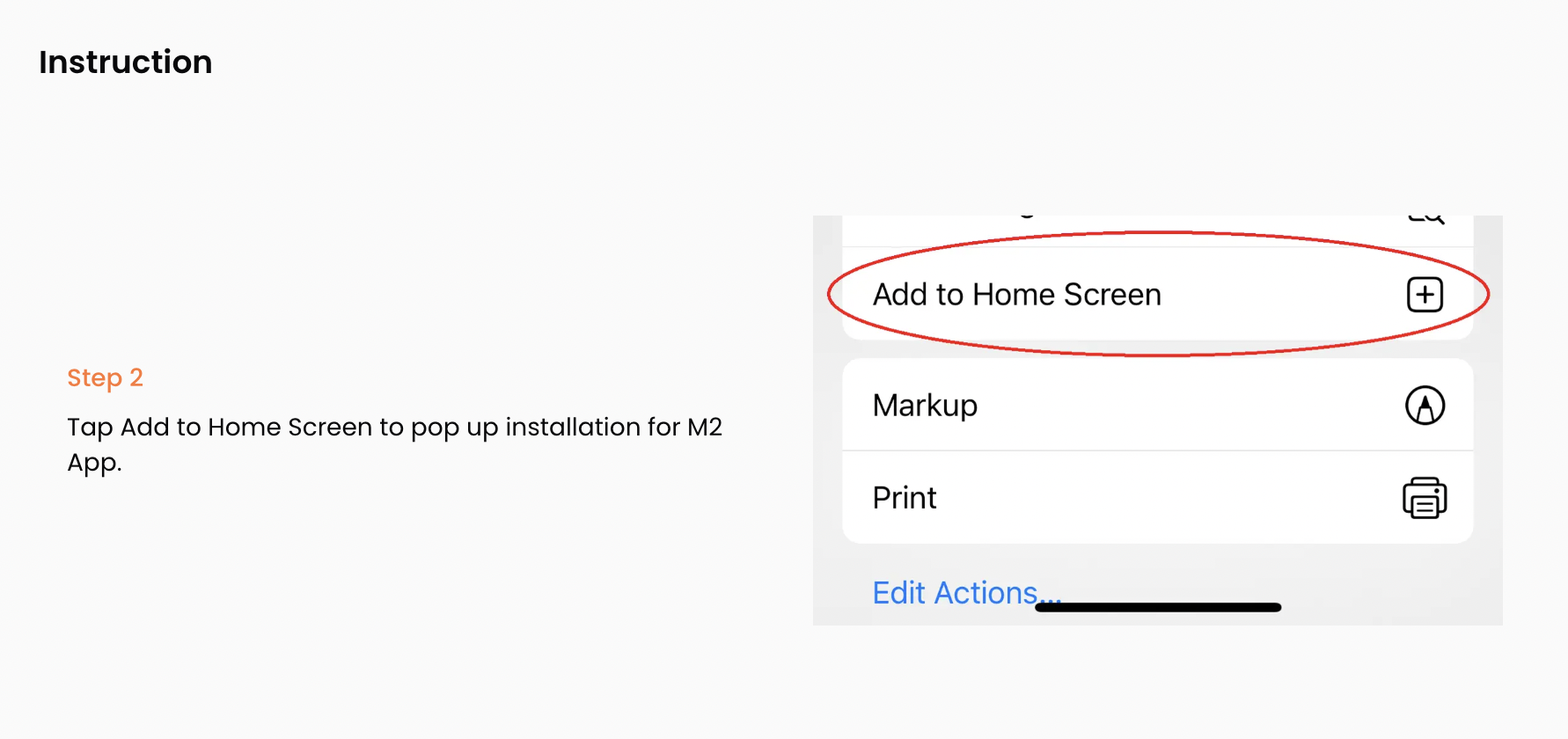
Step 2: Select Add to Home Screen
Scroll through the available actions and tap Add to Home Screen to prepare the browser shortcut for installation.
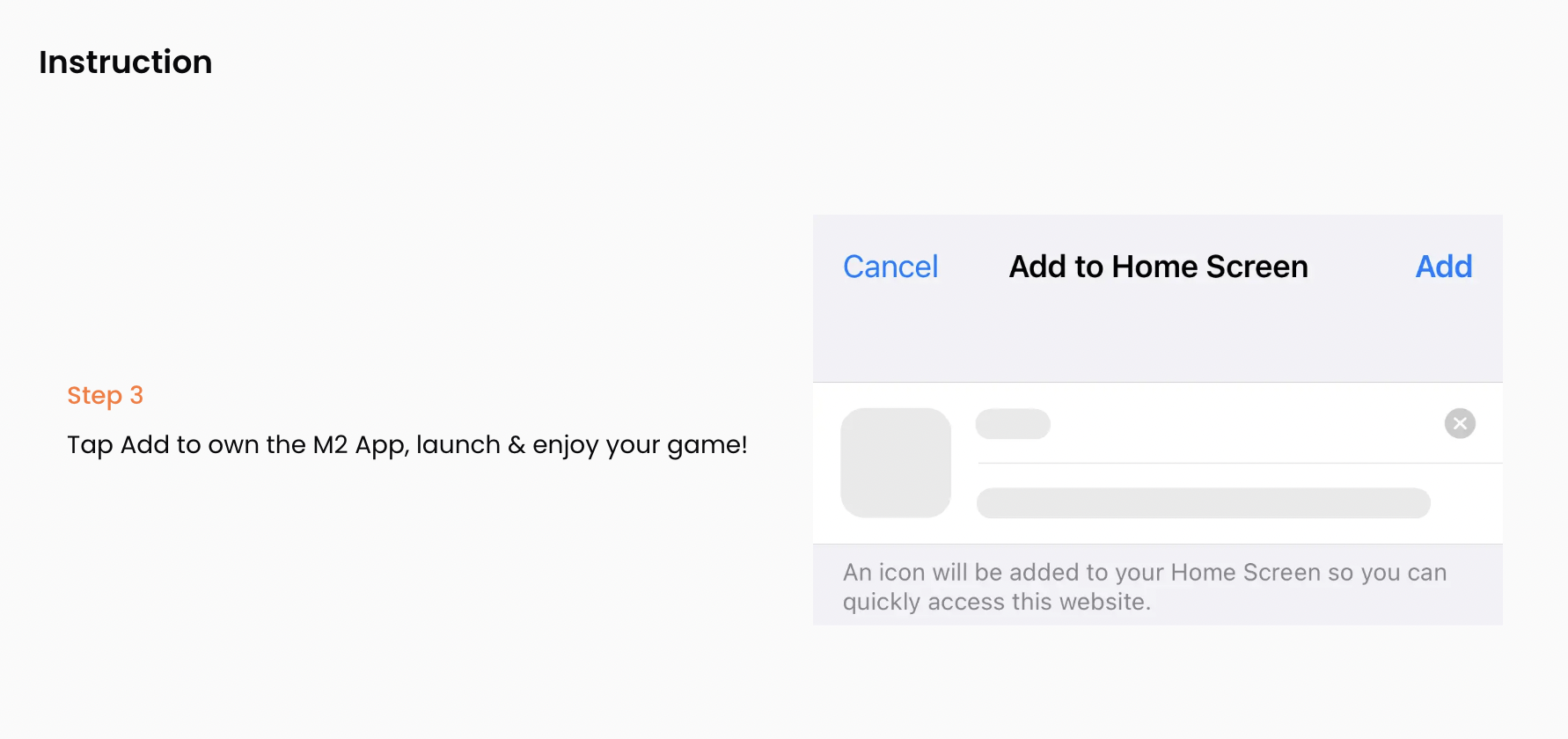
Step 3: Add the Shortcut
Review the application name and tap Add. The shortcut will appear on the iPhone or iPad Home Screen for convenient future access.
Keep Safari updated to improve compatibility and ensure the Add to Home Screen feature functions correctly.
Benefits of the Browser App
Faster Access
The browser application creates a Home Screen or desktop shortcut that allows quicker access without repeatedly typing the website address.
No Separate Installation Package
Members can use supported browser installation features instead of downloading large installation files, making setup faster and easier.
Compatible Across Multiple Devices
The browser application works across Android phones, Apple iPhones, Windows computers, and macOS devices while providing a consistent browsing experience.
Supported Devices
Android Smartphones
Compatible Android devices with supported browsers can install the browser application using the Add to Home Screen option.
Apple iPhone and iPad
Safari supports adding the platform directly to the Home Screen for convenient access.
Windows and macOS Computers
Compatible desktop browsers can install the application using built-in browser installation support without additional software.
Frequently Asked Questions
Does the platform require a traditional APK or App Store download?
No. The platform supports browser-based installation using supported browser features that create a Home Screen or desktop shortcut.
Which browsers are recommended?
Recent versions of Google Chrome, Microsoft Edge, and Safari provide the best compatibility for browser-based installation.
Can I install the application on multiple devices?
Yes. Members may install the browser application on compatible Android, iPhone, Windows, and macOS devices using the same supported installation method.
What should I do if the Install button does not appear?
Update your browser, refresh the page, ensure you are using a supported browser, and revisit the Home page (/en – Internal Link). If assistance is still required, review the About Us page (/en/about-us – Internal Link) or the Terms and Conditions (/en/terms-and-conditions – Internal Link).
What should I do after installation?
After installation, complete Register (/en/register – Internal Link) if you are a new member, or continue through the Login page (/en/login – Internal Link). Members can then explore the Games page (/en/games – Internal Link), including Slots (/en/games/slots – Internal Link), Sports (/en/games/sports – Internal Link), Casino (/en/games/casino – Internal Link), and Lottery (/en/games/lottery – Internal Link). Additional information is available through Promotions (/en/promotions – Internal Link), Rebate (/en/rebate – Internal Link), Deposit (/en/deposit – Internal Link), Withdrawal (/en/withdrawal – Internal Link), and Agent (/en/agent – Internal Link).