

Withdraw Funds Securely with M2
Table of Contents
Withdrawal Requirements
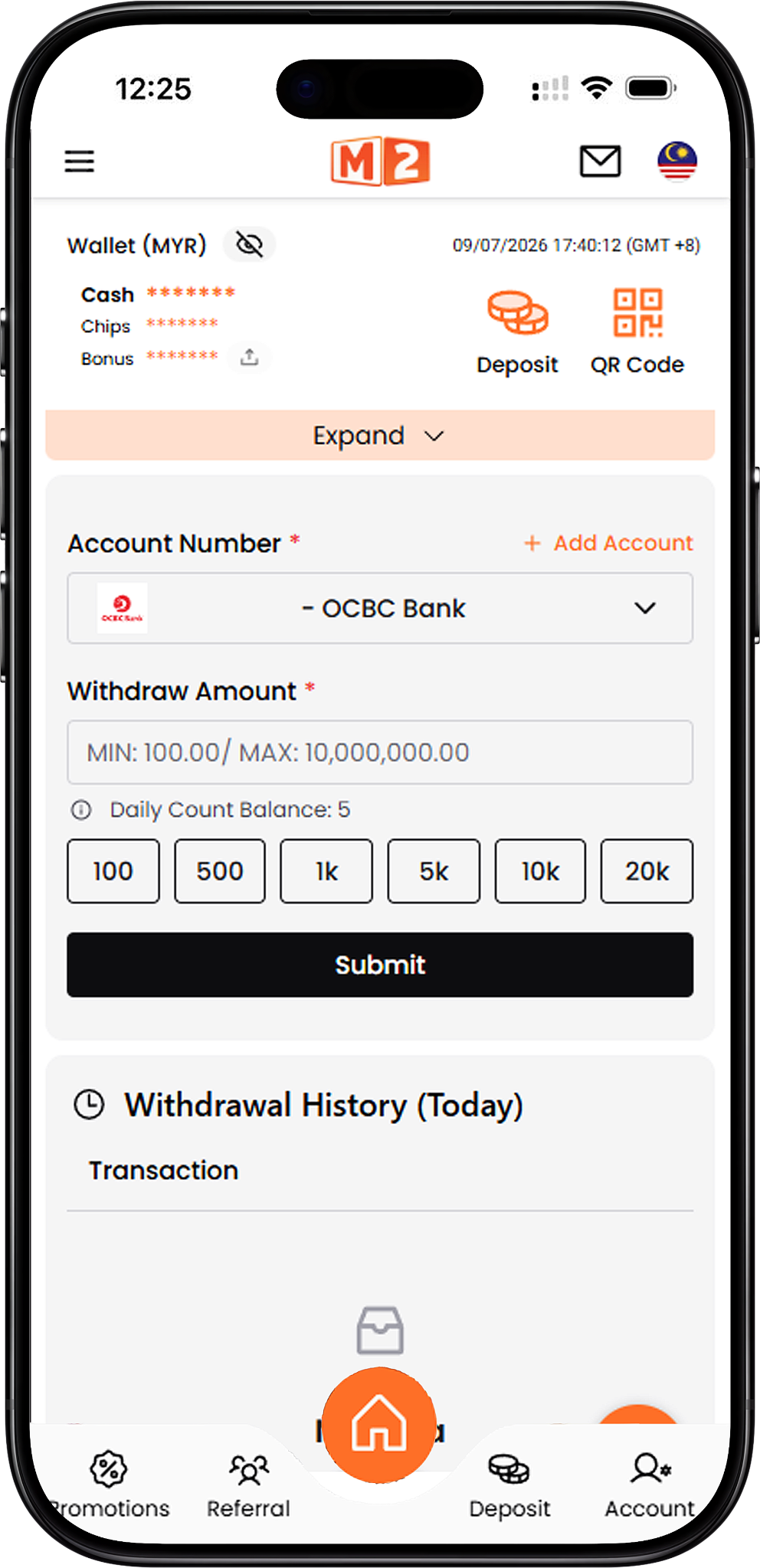
M2 provides a browser-based withdrawal service that allows eligible members to submit payout requests using a registered bank account. Visit m2mya.com through a supported browser after signing in to access the Withdrawal page.
Registered Bank Account
Members should select a previously registered bank account or add a new account before submitting a withdrawal request. Ensure that the account information matches the registered member details where required.
Available Wallet Balance
Review the available wallet balance before entering a withdrawal amount. The page displays the current balance together with the permitted withdrawal range where applicable.
Withdrawal Limits
Minimum and maximum withdrawal amounts, together with daily transaction limits, are displayed on the withdrawal form. Members should review these limits before submitting a request.
M2 Withdrawal Steps
Step 1: Sign In to Your Account
Access the Login page (/en/login – Internal Link) using your registered username and password before opening the Withdrawal section.
Step 2: Open the Withdrawal Page
Navigate to Withdrawal (/en/withdrawal – Internal Link) from the Funds menu and review the available wallet balance together with the registered account information.
Step 3: Select or Add a Bank Account
Choose an existing registered bank account or use the Add Account option to register a new eligible bank account before continuing.
Step 4: Enter the Withdrawal Amount
Input an amount that falls within the displayed minimum and maximum limits. Review the entered value carefully before continuing.
Step 5: Submit the Request
Select Submit after confirming the account number and withdrawal amount. Eligible requests may appear in the Withdrawal History section while awaiting processing.
Manage Your Withdrawal Account
Add a Bank Account
Members may register an eligible bank account through the available Add Account option. Accurate account information helps reduce processing delays.
Review Account Information
Confirm the selected bank account before submitting a withdrawal request. Double-check the account number and banking details to minimise errors.
Keep Your Information Updated
Update eligible account information whenever required to ensure future withdrawal requests are processed using the correct banking details.
Withdrawal History and Status
View Withdrawal History
Members can review available withdrawal records through the Withdrawal History section. Available information may include the transaction date, order ID, bank, account number, withdrawal amount, and processing status.
Continue Exploring the Platform
After completing a withdrawal request, members may continue enjoying Games (/en/games – Internal Link), including Slots (/en/games/slots – Internal Link), Sports (/en/games/sports – Internal Link), and Casino (/en/games/casino – Internal Link). Additional information is available through Deposit (/en/deposit – Internal Link), Promotions (/en/promotions – Internal Link), Rebate (/en/rebate – Internal Link), Agent (/en/agent – Internal Link), About Us (/en/about-us – Internal Link), and Terms and Conditions (/en/terms-and-conditions – Internal Link).
Account Security Tips
Protect Your Account
Never share your username, password, or account verification information with another person. Use only trusted devices when accessing your account.
Verify the Website Address
Always confirm that you are visiting the official platform before signing in or submitting financial requests. Access the website directly through m2mya.com using a supported browser.
Review Your Transactions Regularly
Check your withdrawal history regularly to confirm the status of submitted requests and identify any unexpected activity on your account.
Frequently Asked Questions
Do I need a registered bank account?
Yes. Members should select or register an eligible bank account before submitting a withdrawal request.
Can I review previous withdrawal requests?
Yes. The Withdrawal History section displays available transaction records together with their processing status.
Are withdrawal limits displayed?
Yes. The withdrawal page displays the applicable minimum amount, maximum amount, and other available transaction limits.
Do I need to sign in before requesting a withdrawal?
Yes. Members should first access the Login page (/en/login – Internal Link) before opening the Withdrawal section.
How do I create an account?
New members can complete the registration process through the Register page (/en/register – Internal Link) before using Deposit or Withdrawal services.